
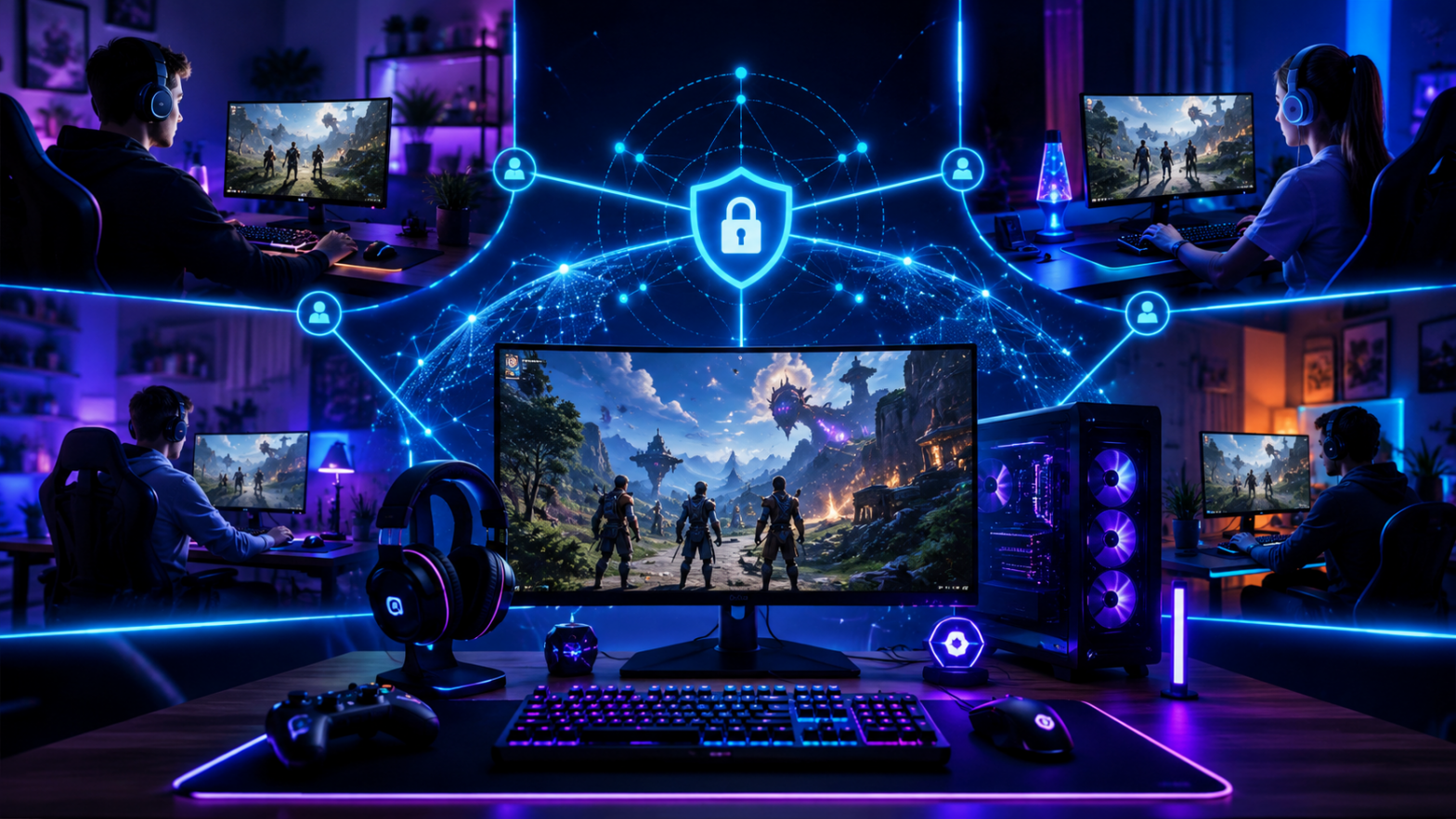
Whether you and your friends are scattered across different cities, countries, or even continents, the dream of sitting around the same virtual table for a LAN party has never been more achievable. Radmin VPN has become one of the most popular tools among PC gamers who want to recreate the magic of a local area network without everyone being physically present in the same room. In this comprehensive guide, we break down exactly how to set up, optimize, and troubleshoot Radmin VPN for gaming — so you can focus on winning rather than wrestling with settings.
Why Radmin VPN Is a Gamer’s Best Friend
Before diving into setup steps, it is worth understanding why Radmin VPN has earned such a loyal following among gamers. Unlike a conventional VPN, which reroutes all your internet traffic through a remote server to mask your IP address and encrypt browsing activity, Radmin VPN takes a different approach. It creates a virtual local area network — a virtual LAN — that allows all connected computers to behave as though they are plugged into the same physical router.
This distinction matters enormously for gaming. Many classic multiplayer games, particularly older LAN-era titles like StarCraft, Age of Empires II, Diablo II Resurrected, Counter-Strike 1.6, Warcraft III, and hundreds of indie games, rely on local network discovery to find opponents or co-op partners. These games were never designed with internet multiplayer in mind. They scan for other machines on the same subnet, exchange data over local broadcast packets, and assume that latency will be measured in single-digit milliseconds. Radmin VPN emulates exactly that environment, allowing these games to discover one another and play together as if everyone is in the same room.
Even for modern games that do support online multiplayer natively, Radmin VPN can offer advantages. Some users find that a direct peer-to-peer connection through the virtual LAN offers lower latency than routing through official game servers, particularly when gaming with people in the same region. It also allows you to play games in their local multiplayer mode without purchasing separate online service subscriptions.
The software is completely free to use, requires no subscription, and supports networks of up to 100 computers per virtual LAN — more than enough for any gaming session. It uses 256-bit AES encryption to protect data within the virtual network, though it is worth noting that this encryption applies only to traffic within the Radmin VPN tunnel itself, not to your general internet browsing.
System Requirements and Compatibility
Before you get started, make sure your setup meets the requirements. Radmin VPN is a Windows-only application, currently supporting Windows 7, 8, 8.1, 10, and 11. Both 32-bit and 64-bit versions are supported. Your gaming PC needs an active internet connection — Wi-Fi or ethernet — and no particularly powerful hardware is required since Radmin VPN runs as a lightweight background process.
All players in your virtual LAN party need to be running Windows as well, at least on the devices they use for gaming. There is no macOS or Linux version of the Radmin VPN client at this time.
One point worth emphasizing: both the host and all joining players must install and run Radmin VPN on their own machines. This is a peer-to-peer style setup — there is no single person “hosting” the VPN in the traditional sense. Everyone connects to the same virtual network, and any computer on that network can host a game session.
Step-by-Step: Installing Radmin VPN
Step 1: Download the Latest Version
Navigate to the Download page. Click the download button and save the installer to a location you can easily find, such as your Desktop or Downloads folder.
Step 2: Run the Installer
Once the download completes, double-click the installer file. You may see a User Account Control prompt asking if you want to allow the app to make changes to your device — click Yes. The setup wizard will open. Accept the license agreement and click Next. The installation completes quickly, usually within 30 seconds.
Step 3: Launch Radmin VPN
After installation, Radmin VPN will appear in your Start Menu and may also place an icon on your Desktop. Launch it. The first time you open it, the software window will be largely empty — you have not joined any networks yet.
Creating and Managing Your Gaming Network
Creating a New Network (The Host)
One person in your group needs to create the virtual network that everyone else will join. In Radmin VPN:
- Click Network in the top menu bar, then select Create new network.
- Give your network a descriptive name — something like “FridayNightLAN” or your gaming group’s name.
- Set a strong password. This password is what other players will use to join, so share it through a private channel like a group chat rather than posting it publicly.
- Click OK to create the network.
Your network will now appear in the Radmin VPN window. You will see your own machine listed with a virtual IP address, typically in the 26.x.x.x range. This is the IP address that other computers on your virtual LAN will see you as.
Joining an Existing Network (Other Players)
Everyone else in your group needs to join the network the host created:
- Click Network > Join existing network.
- Enter the exact network name (case-sensitive) and the password provided by the host.
- Click OK.
Within a few seconds, each joining player will appear in the network member list in the host’s Radmin VPN window, and they will also see all other members in their own window. Everyone will have a virtual IP address in the 26.x.x.x range.
Verifying Connectivity
Before launching any games, it is a smart practice to confirm that all players can actually communicate across the virtual network. The quickest way is a simple ping test:
- Open Command Prompt on your PC (press Windows key, type “cmd”, hit Enter).
- Type
ping 26.x.x.xwhere26.x.x.xis the virtual IP of another player as shown in Radmin VPN. - Hit Enter and wait for the results.
If you see reply times rather than “Request timed out” messages, connectivity is established. Typical ping times within a Radmin VPN network between players in the same country are 5–50 milliseconds, which is perfectly acceptable for gaming.
If you see timeouts, jump to the troubleshooting section later in this guide.
Configuring Your Game for LAN Play
This step varies by game, but the general principle is the same across virtually all titles that support LAN play: instead of using the internet multiplayer lobby or matchmaking, you look for a “Local Network” or “LAN” option, and the game discovers other instances through the virtual network.
Example: Age of Empires II: Definitive Edition
- Launch the game and navigate to Multiplayer.
- Select Direct IP or Local Network depending on the version.
- If your game supports LAN discovery, it should automatically detect other players on the Radmin VPN virtual LAN. If not, the host’s virtual IP address (shown in the Radmin VPN window) is used to connect directly.
Example: Minecraft Java Edition
- The host starts a LAN world through Open to LAN within a single-player world.
- Other players on the Radmin VPN network open Multiplayer in Minecraft and should see the LAN game appear automatically.
- If it does not appear automatically, click Direct Connection and enter the host’s 26.x.x.x virtual IP followed by the port number shown in the game (e.g.,
26.25.10.1:53845).
Example: Diablo II Resurrected
- Both players select Open Battle.net (the legacy LAN mode).
- The game should discover other sessions on the virtual LAN automatically.
- If not, use the TCP/IP option and enter the host’s virtual IP directly.
The pattern repeats across most LAN-capable games: try automatic discovery first, and fall back to direct IP entry using the Radmin VPN virtual IP if discovery fails.
Optimizing Radmin VPN for the Best Gaming Performance
Use Wired Connections Where Possible
While Radmin VPN works over Wi-Fi, a wired ethernet connection will almost always provide lower latency and better stability. If you are the host of the game session in particular, being on ethernet makes a meaningful difference.
Keep the Software Updated
Radmin VPN version 1.4 is the current release. Ensure all players are on the same version to avoid compatibility issues. Updates are infrequent but worth applying when they appear.
Minimize Background Network Activity
Streaming services, cloud backup software, and large downloads running in the background can increase latency and cause packet loss during gaming. Before your session, close bandwidth-heavy applications on all machines.
Check Your Firewall Settings
Windows Defender Firewall and third-party antivirus/firewall products sometimes block Radmin VPN traffic. If you are having connectivity issues, try temporarily disabling your firewall to see if that resolves the problem, then create appropriate exceptions rather than leaving the firewall off permanently. In Windows Firewall, add inbound and outbound rules for the Radmin VPN executable.
Limit Network Size for Competitive Gaming
Radmin VPN supports up to 100 machines per network, but for competitive gaming with fast-paced titles, smaller networks (2–8 players) tend to produce the smoothest experience. Large virtual networks increase broadcast traffic, which can slightly increase latency.
Troubleshooting Common Radmin VPN Gaming Issues
Players Cannot See Each Other in the Game Lobby
- Confirm everyone is on the same Radmin VPN network. The network name and password must match exactly, including capitalization.
- Check that all players have the Radmin VPN window open and that all players show as connected in the member list.
- Try pinging each other. If the ping test fails, the problem is at the network level, not the game level.
- Check firewall settings on all machines. Both the host and all clients need to allow traffic through the virtual network adapter that Radmin VPN creates (usually listed as “Radmin VPN” in your network adapters).
Very High Latency (Ping Above 200ms)
- Geographic distance is the primary factor. Players in different continents will experience high latency regardless of the tool used.
- Check actual internet connection quality by running a speed test. Slow or unstable upstream bandwidth on the host’s end is often the culprit.
- Close background applications that compete for bandwidth.
- Try a different game region or server location if your game supports server selection.
Radmin VPN Shows Connected But Game Does Not Detect LAN
- Some games require additional firewall exceptions for their own executable, separate from Radmin VPN itself.
- Try running the game as Administrator. Right-click the game’s shortcut and select “Run as administrator.”
- Check if the game has a specific LAN port that needs to be open. Consult the game’s official documentation or community forums.
- Disable any active traditional VPNs you might be running simultaneously, as they can interfere with Radmin VPN’s virtual network adapter.
Radmin VPN Crashes or Fails to Start
- Reinstall the application using the latest installer from radminvpndownload.com.
- Check for conflicting software, particularly other VPN clients or network filtering tools.
- Ensure Windows is up to date, as Radmin VPN relies on standard Windows networking components.
Privacy and Security Considerations
Radmin VPN is transparent about what it does and does not do from a security standpoint. It is important for gamers to understand:
- Radmin VPN does not hide your real IP address from the internet. Websites and online services will still see your actual IP. It is not a privacy tool in the way that traditional VPNs are.
- Data within the virtual LAN is encrypted with 256-bit AES. This means communications between machines on your Radmin VPN network are secure.
- Access is password-protected. Your virtual network can only be joined by people who know the network name and password. Use a strong, unique password and share it only with people you trust.
- Radmin VPN is developed by Famatech, a reputable software company with a long track record in remote access and networking tools. The software does not contain malware or adware in its official release.
Always download from radminvpndownload.com or the official Famatech website to ensure you have a legitimate, clean copy of the software.
Great Games to Play on Radmin VPN
If you are looking for inspiration for your next virtual LAN party, here are some fan-favorite titles that work exceptionally well with Radmin VPN:
Classic Strategy: Age of Empires II: Definitive Edition, StarCraft: Remastered, Warcraft III: Reforged, Command & Conquer Remastered Collection
Action & Shooters: Counter-Strike 1.6, Half-Life Deathmatch, Quake series, Unreal Tournament classic editions
RPG & Co-op: Diablo II: Resurrected, Baldur’s Gate 3 (LAN mode), Torchlight series
Survival & Sandbox: Minecraft Java Edition, Terraria, Don’t Starve Together, Valheim
Racing & Sports: TrackMania, Rocket League (older LAN builds), FIFA/PES LAN modes
Many indie games also support LAN play. When browsing Steam, filter by “Local Multiplayer” or “LAN” in the feature tags to discover titles that work natively over Radmin VPN.
Radmin VPN has stood the test of time as the go-to virtual LAN solution for gamers because it does exactly what it promises: it creates a stable, encrypted, virtual local network with minimal setup and zero cost. Whether you are reviving a beloved classic, hosting a weekly co-op session with friends across the country, or simply looking for lower latency in peer-to-peer gaming, Radmin VPN delivers.
The key to a smooth experience is getting everyone set up before game night — install the software, create or join your network, run a quick ping test, and then launch your game with confidence. With a bit of preparation, virtual LAN parties in 2026 feel just as good as the real thing.